Showing posts with label Presentations. Show all posts

Friday, October 5, 2018

Mirror, Mirror, Should I Split?


Do you sometimes feel constrained by the limited space available to view different windows on your computer?  Do you need to share a document with your learners, but at the same time you want to be taking notes about observations of your learners or need to submit your attendance for that class period?  Have you tried splitting your screen using Apple TV?

Next time you are connected to your Apple TV take a closer look at the menu options.  When you open the Apple TV menu you should see Open Display Preferences. 


From the Built-In Display menu you will select Arrange. You have the option to click Mirror Displays, so that what you see on your computer screen is what is displayed through your Apple TV.  


Or, you can move to an extended desktop view, by unchecking the Mirror Display option.  Then you will have 2 different areas for working and viewing of your one computer screen.


You will only see the display options when you are connected to a projector or Apple TV.  There is one more place to look that will make switching between these screens so much easier.  When you click AirPlay there is another option on your menu.  Have you ever noticed that once you are connected there is an option to Use As Separate Display?


Yes, that easy!  You can select the Separate Display option and you instantly will have an extended desktop!


When you are done either Turn AirPlay Off or select Mirror Display.  Easy peasy! Aren’t you so happy to learn a quick and easy way to manipulate the views of your screen!

Monday, October 6, 2014

Google Research Tool

One of my favorite features when using Google Docs or Google Slides is the Google Research tool. I was able to share this magnificent tool with a few fellow teachers today! Using this tool allows users to quickly and easily find resources related to their work in the same window!

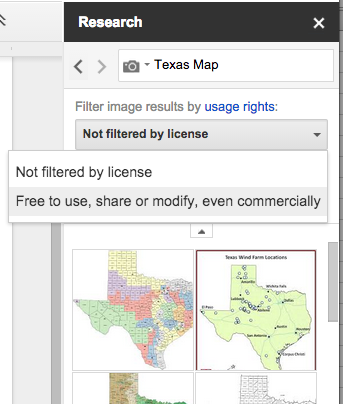
 To get started using Google Research go to the Tools menu and select Research. In the search field, enter the subject matter for what you are searching to find. From this field choose to search everything through Google, Images, Scholar, Quotes, Dictionary, Personal, and Tables.

Using the Images features allows users to filter the type of images to be returned in the search results.  When working with students and teachers I am always the person to remind others to be mindful of copyright.  It's important to me to make sure everyone understands what is and is not appropriate it use within the educational realm.  I truly want our students (and teachers) demonstrate digital citizenship everyday, all day!  That is a big reason why I LOVE this feature!

Another amazing option is to select the type of citation to automatically be inserted in the document or presentation by using the Citation format.  When working with younger students it is more important to me that our users are citing all of their sources than the order of author, date, and publication.  The simple fact that this tool is easily available is incredible!  And, that all teachers can so easily demonstrate this skill is even more important.  We don't need to make the process difficult.  Use these readily available tools to make your work easier!
Start using the Research tool now!