Wednesday, March 30, 2016

Starting From the Beginning

A former boss once gave everyone in my department a framed quote that was individually picked for each of us upon her retirement.  The quote chosen for me was "Everything you do, you do with the child in mind."  From the time I started teaching I always considered how it would play out for the learners.  They were the reason I was there in the classroom.  Years later, when conversations with my colleagues began to center on what is best for learners, it just made sense to me.  This is what educators should focus on in the classroom.

Fast forward to this past winter, a colleague, Sunny,  was excited to share with me a book she had recently read that we both firmly believed in the message, The Innovator's Mindset by George Couros.  The message of empowering educators to lead change in their learning environments in order to push learners to think and be creative!  I get excited just thinking about it again!  We discussed how we wanted to spread this message to our circle of influence, our campus.

Around this same time we also heard about Teacher2Teacher #WhyITeach.  We thought there was a strong connection of having educators share their story as to why they began teaching with how transforming their classroom environment would best meet the needs of their learners.

From these resources and conversations a series of Leading Innovative Change began!  The series would focus on the 8 characteristics of an Innovator's Mindset, directly from the book.  Each week we would present a characteristic with some type of discussion while modeling a technology tool educators could then use with learners in their learning environments.   And so our journey began.

Our first session focused on introducing the series to our audience.  We shared the concept of #WhyITeach, had all the participants create their own story bubbles, and tweet their stories.  It was a very successful session.  There were a few individuals who were unable to participate on the particular day and made their way to the room later in the week to share their story!
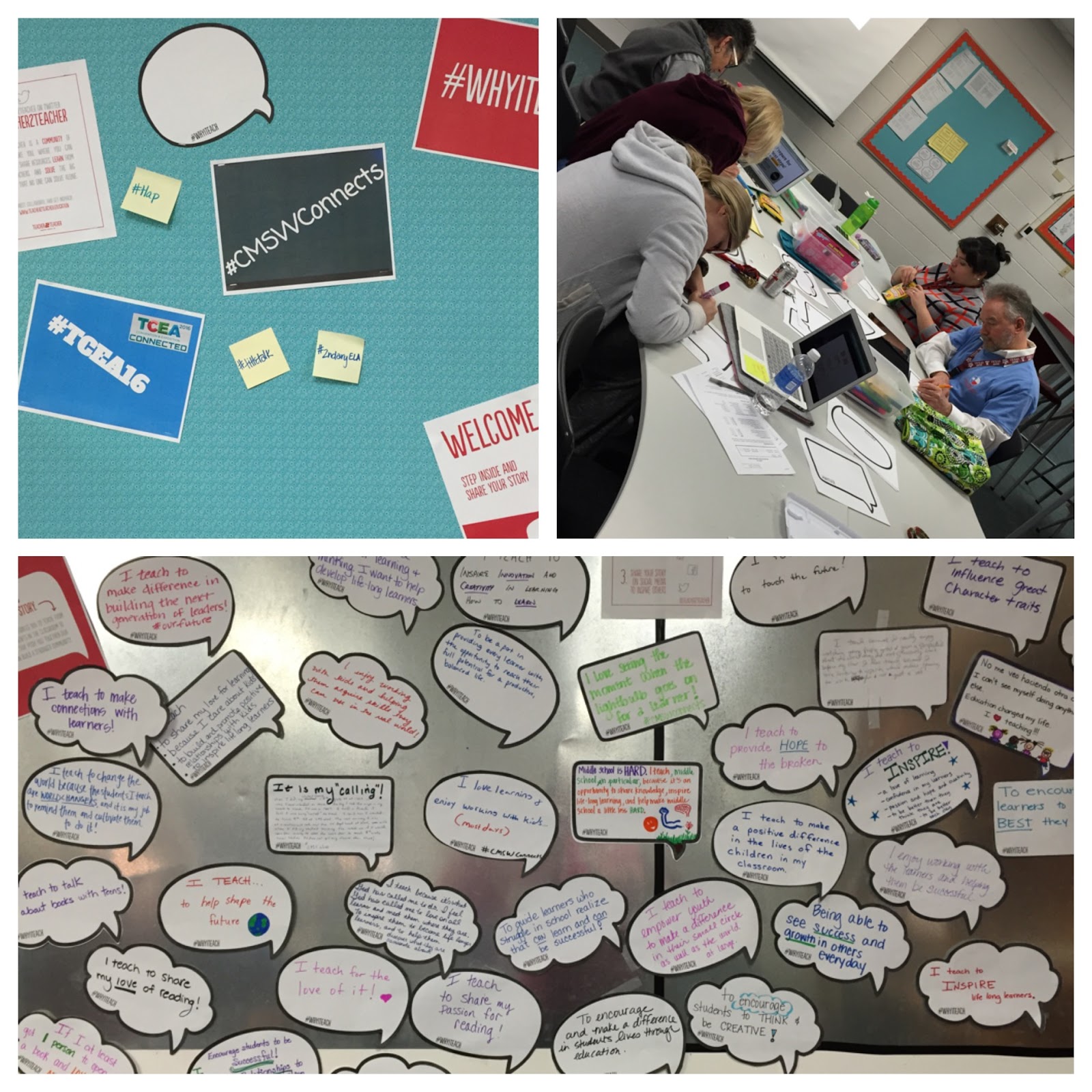


It is important to me to also encourage educators to share the story of what is happening on our campus and connect with other educators to build their own PLN.  We encouraged the educators to share tweets using #cmswconnects.  We also encouraged educators to follow #tcea16.  TCEA is the Texas Computer Education Association conference highly attended!  It is a great place to learn!  It is a great way to connect, either virtually or in person!

The particular tool we wanted to focus on for this conversation was TweetDeck.  I showed educators how using a tool such as TweetDeck allows you the flexibility to follow individuals or hashtags on twitter.  We spent time setting up accounts and searching different hashtags for different areas of interest.  


Leading change had begun.  We were off and running.  Where would this path go?  We didn't know.  Who would jump at the opportunities to make changes in their learning environments?  We didn't know.  We had hope!  Hope is a great place to start.

Friday, December 18, 2015

Help Learners Share Their Voice?

I love to share apps!  Apps that make learners want to share their learning!!  I get a little too excited when a conversation, that has nothing to do with work and school, turns to fun apps.  And, when you can use a "fun" app to help learners grow...amazing!

I used some time I had with educators to remind them of some simple ways to incorporate voice in their classroom.  We took a little time to look at ChatterPix and Tellagami.  These were not necessarily new apps, but looking at some really great examples of using these tools in their classroom and in every classroom.

I put together a ThingLink to share the resources:


What I loved the most was in less than 30 minutes an educator shared how she had easily created content she needed to share with her learners and had not thought it was going to be possible.  She moved a conversation that would have taken a large chunk of her face to face class time and moved it to a format her learners could access at any time!

A week later, while I was walking in the hall I heard another educator ask the learners to summarize their learning using a ChatterPix to submit as an assignment.  I may be a little bit too excited about apps, but I don't care!  I love it!


Learn more about ThingLink here!

Chrome Can Change Your Life!

It was very interesting to meet a group of individuals who weren't using Chrome for, well everything!  What is this browser you speak of?  I don't understand, are you speaking in a different language?  Chrome has the ability to simplify my life!  I can pickup browsing where ever I left off, no matter what device.  And the extensions have made functioning so much easier, too!

So, this fall I was able to help others convert to my favorite browser!  Here are the basic steps to simplifying your life!


Twitter Challenge

Developing a PLN through Twitter has been an encouraging and validating experience for me.  I am excited by how many educators are willing to share their ideas and connect with others.  I crave learning from other liked minded individuals and inspired.  This PLN I have created keeps me engaged in a wider world of education.

I want to help others grow their PLN.  Earlier this fall, I hosted a Twitter challenge.  The focus was to tell the story of our campus.  It is interesting how so many educators have amazing things happening in their classrooms and never share!

The challenge  about 3 weeks.  The challenges focused on broadening awareness of the campus activities, trying new tools or sharing familiar tools, sharing your voice.  All the tweets had to have either #teamwest or #cmswconnects.  Take a look at the bingo board the educators used:


The challenge included prizes!  Jeans passes were a hit! It was amazing to see individuals really take a leap of faith and try something new.  Many educators have continued to use Twitter so share their story.  What a great example to share with learners how to use social media responsibly.


Educators used the app Notability to track their participation and shared their results in the end.  A good number of educators either filled their bingo boards or came very close.  Overall, this was a great experience and I would highly encourage others to use a similar method to dive into tweeting!

Posting Videos to YouTube

When having learners, or yourself, uploading video projects to YouTube I would encourage you to check the settings for privacy.  A learner was working on a project and found their own video linked to a website they had never come in contact with before.  It is a very strange feeling to find your work somewhere you have never actually been asked to share with before.

An option for sharing using YouTube is to Unlisted so that the projects can only be accessed by those who have the link.  This can be achieved when uploading projects from an iPad or a computer.  Here are step-by-step directions for uploading a video from the iPad.

Sign into your school Google Drive and allow Google to access your account information
Upload the movie file from your iPad to your YouTube Channel
Enter a Title and Description for the project
Select Standard Definition
Enter Tags related to the content area
For Category, select Education

Select Unlisted so that only individuals with the link can view the video.
Then Publish


Also, here are directions for uploading to YouTube from a computer:


Keep these instructions for when you have a video project later!  

Friday, May 1, 2015

Creating Inbox Filters

Are you overwhelmed by the amount of emails in your inbox on any given day?  Many of the messages we receive can be handled before you even open your computer or device to check emails just by using the labeling and filtering system with Google Gmail.

To begin, click the down arrow in the search box at the top of your inbox.  Now, enter all the details for what type of message you want to filter.  For example, if you want any email from a specific domain to always bypass your main inbox, then enter *@domain.com (domain name) in the from field.  Then click the Create filter with this search link to continue to the next screen.


Now, go through the list of options to create your mailbox rule.  By marking Skip the Inbox (Archive it) and Apply a label (selecting a label of your choice).  Be sure to click Create filter.  Now the next time you receive an email from that particular domain, you can check the folder on the left side of your gmail screen and not be cluttered in your main inbox.  Happy filtering!


Thursday, April 30, 2015

Gmail Signature Social Media Icons

Make it easy for anyone you are communicating with to connect with you through social media networks by adding links to your profile pages in your gmail signature!  Watch this video tutorial to learn how...


I used iconfinder.com to find the icons as a 32x32 png file.  Simple steps to help grow your PLN.