Tuesday, September 11, 2018

Schoology and Google Assignments!

Chocolate and peanut butter.  Pancakes and syrup.  Campfires and s'mores.  Somethings were just made to be together.  Schoology and Google were too!  There is a great feature in Schoology where you are able to link a Google Document (Docs, Slides, Sheets, Drawings) through an assignment that will automatically create a copy of the document in a designated folder on your Drive!  You don't have to change the share settings or email a link.  It's all done with a click of a button!

You have made your plans and have a Doc or Slides presentation you want your learners to have their own copy, like a template.  You have created this document in your drive.  Now all you need to do is add this document to your Assignment in Schoology.

Watch this video to learn how...


The document will be found in a particular folder where the educator can check on the progress.  Learners will turn in their assignment by clicking the "Submit" button.  Educators can grade the assignment from one spot!

Schoology and Google were just made to be used together!  How do you see yourself using this feature in the near future?

Thursday, July 19, 2018

Chrome Book Creator: Real Time Collaboration


I watched another Book Creator webinar by Monica Burns from Class Tech Tips to learn more about the real-time collaboration aspect of Book Creator.  To be clear and upfront, the real-time collaboration is a newer feature for Book Creator and is also part of the paid version.  Look closely at the different price ranges Monica shared during the webinar.


One question Monica asked the participants is how are your learners already using collaboration in your classroom?  A few of the answers were Flipgrid, Padlet, and G Suite for Education.  Collaboration is an important skill we must practice and practice with learners.  Collaboration is probably already happening in your classroom, but how are you asking learners to work together?  Maybe learners are all reflecting on a common topic or experience.  Maybe learners are brainstorming and inspiring each other.  Maybe learners are all contributing a portion of a book to create a larger scale end product.  Have you ever thought about the different ways learners collaborate?  I thought it was interesting the graphic Monica shared to explain the different types of collaboration.


To specifically use the real-time collaboration feature there are a few steps to get up and running for your learners  
1. Create a teacher shared library
2. Through settings, invite users to join your book using an invite code
3. When you are finished with the collaboration aspect, turn off collaboration

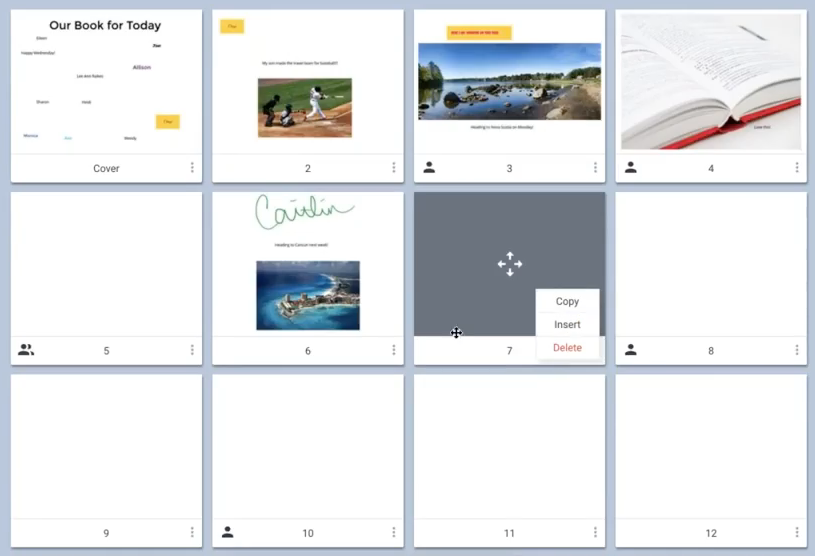
Notice the blue outline to show where you are working on a page.


Also, with each learner having their own page, you can monitor progress all at once!


Some other tips to keep in mind when working in a collaborative space:
1. Set very clear expectations for what work should be done
2. Create and assign each learner a different page to add their work
3. Assign which pages each learner will provide feedback for their classmates
4. Turn off the collaboration feature when learners are no longer working in the shared space in order to avoid work being edited by someone else.

Feedback can come in 2 different styles when using Book Creator.  Learners can create a new text box to type a response; or, learners can use the audio recording feature to share verbal feedback.  Either way, once the person has received their feedback they can then delete that particular feature from their own page.  With some many different tools to use learners will enjoy creating and sharing!

I really enjoyed this webinar and it helped me to see what other types of possibilities are available when using Book Creator.  Thank you, Monica!  How would you like to use the real-time collaboration piece?


Wednesday, June 27, 2018

Chrome Book Creator: Checking for Understanding

I recently watched a webinar presented by Monica Burns from Class Tech Tips share how Book Creator can be used in so many different ways with learners for checking their understanding of content.  I talked about Book Creator with Alli in a podcast episode from An Apple a Week that you can listen to here.

One of the reasons I love this app is because it can be used on the iPad through the Chrome app.  As long as you have access to wi-fi it is so simple to use!  No need to download an app.  If you want to learn more about using Book Creator here is a tutorial video I used this past spring to help 7th graders with their cattle drive project.  This tutorial will show you the basics of the app.


The webinar reminded me of a few of my favorite features from Book Creator.  Learners have the option of adding audio, video, text, and illustrations.  Choice!  Let our learners choose the media of their content.  Yes!  As I demonstrated in the tutorial above app smashing is pretty simple with this application which leads to creativity.  I am very confident our learners can put together much more creative pieces than myself, although I enjoy layering apps!  So with the power to create, I hope our learners would feel like their work is meaningful.  

Some of our learners need a little more direction, and that's okay.  The webinar suggested using graphic organizers and checklists to keep learners focused on their projects.  I know I love checking things off a checklist to show progress toward my end goal!  And don't forget the power of peer feedback!  Book Creator is very easy to share, so having peers give qualitative feedback is another approach to keep in mind.

If you have not explored Book Creator take some time to experiment for yourself!  Monica is hosting several webinars this summer, so check those out too!

Friday, May 18, 2018

An Apple a Week: Episode 11

I cannot believe Alli and I have recorded our last episode in our podcast series: An Apple a Week. 


This has been a joy to create this podcast and work on the content all semester. I have learned a lot for myself and I’m hoping I can share my knowledge with others, both about creating a podcast and Apple in Education. In this episode, Alli and I discuss how we can continue our learning over the summer. I hope you enjoy listening to this episode.


Now that you listened to the podcast, how will you grow over the summer? Join us on Tuesday, June 5th!  Register in Euphoria!! 
Image Created in Canva by Megan Kozar

You know you have something to share! Why not submit a proposal? You will be welcome with open minds when sharing your knowledge with fellow educators from CISD.

And, check out all of the other learning opportunities available across the metroplex!

Share with us your learning at #coppelldlc!  And I can confidently say, I have every intention of continuing to podcast in the future!

Wednesday, May 16, 2018

And the one became two!

Recently I was able to help a colleague with a task that wasn't necessarily difficult, but time consuming.  Printing name tags from a spreadsheet using mail merge is not difficult, but I have found it usually takes me a little time to get everything in just the right order so that the final product comes out looking pristine!

What seems like many, many, many years ago I would use the mail merge option with Word and Excel on a regular basis.  I recall one particular report I would run but the first and last name of learners would be in one column.  I needed the names in separate columns.  My colleagues and I would go through a series of steps to reach our desired outcome.  There were columns added & copied, formulas entered and the "Paste Special;" then, columns deleted.   


So faced with this task, I thought the clock wold tick by to complete the process.  But wait!  It was completed in only a few short seconds.  What could this be?  A simple action on a menu that took all the time and thinking away to perform a task?  Praise the spreadsheet heavens!
 
via GIPHY

Thursday, April 26, 2018

Collaboration Time!

I have had some time to play around with Keynote since the podcast episode Alli and I recorded in January.  I had not spent too much more time with it, but it was always in the back of my mind of how can I use this again?  This is my first animation I made...


On multiple occasions I have tried to think how I could use Keynote, but it just didn't seem like the right fit and you shouldn't force a tool on a project.  Then, I had a brilliant idea to collaborate with my daughter!  She had recently found out about the No More Straws campaign to end the use of plastic straws.  We worked together to share the message and use a new tool!   We learned together!


I can't wait to see how this learning will lead to new creative ideas!

An Apple A Week Podcast Series: iMovie

The next episode in our Apple a Week series is all about iMovie!

I have used iMovie for a really long time. Like, a really long time. I remember when you had to use a Firewire cable to connect the camera to import the video to the computer. I loved iMovie. I made iMovies ALL. THE. TIME! I needed a break. So, many years later when I ventured into iMovie land again I found myself a little frustrated because all of the bells and whistles were hidden somewhere and it was a struggle to make movies and I decided to breakup with iMovie for real!! In the next chapter of my life iMove was now available to be used on my iPad. Wow! I can wrap my head around this again!! I embraced iMove, once again. After a few more twists and turns in our rocky relationship iMovie and I had some rough times. Once again, I am back on the iMovie train. It is an up and down, give and take relationship I have with iMovie. What I love about iMovie is that it is *free* and pretty straight forward to use. What I love about iMovie is that our learners love it too! They want to express themselves. They love to see themselves perform! And, it doesn’t matter how old you are, you can use iMovie! In this episode we are joined by learners who tell us how they are using iMovie in their classroom!

 I hope you enjoy…